How Wevyn Works: From First Contact to Closed Ticket
Discover how Wevyn orchestrates customer support from first touchpoint to resolution. This visual guide covers ticket lifecycle management, intelligent routing and escalation, service-level time (TAT) optimization, SPOC accountability, and complete channel and integration architecture.
W
Wevyn Editorial TeamAI & Customer Experience
On this page
Every customer conversation is an opportunity. Wevyn orchestrates every interaction across channels— calls, WhatsApp, email, live chat, social media, and app reviews into a unified, intelligent system engineered for speed, consistency, and measurable impact.
Inside this guide:
The complete customer journey from first contact through resolution and measurement
Intelligent routing and escalation architecture—how Wevyn prioritizes and acts on what matters most
Deep integration: compatible dialers, supported channels, and seamless third-party partnerships
Operational excellence: tagging, TAT management, SPOC notifications, automated escalation, and real-time analytics
How Wevyn works
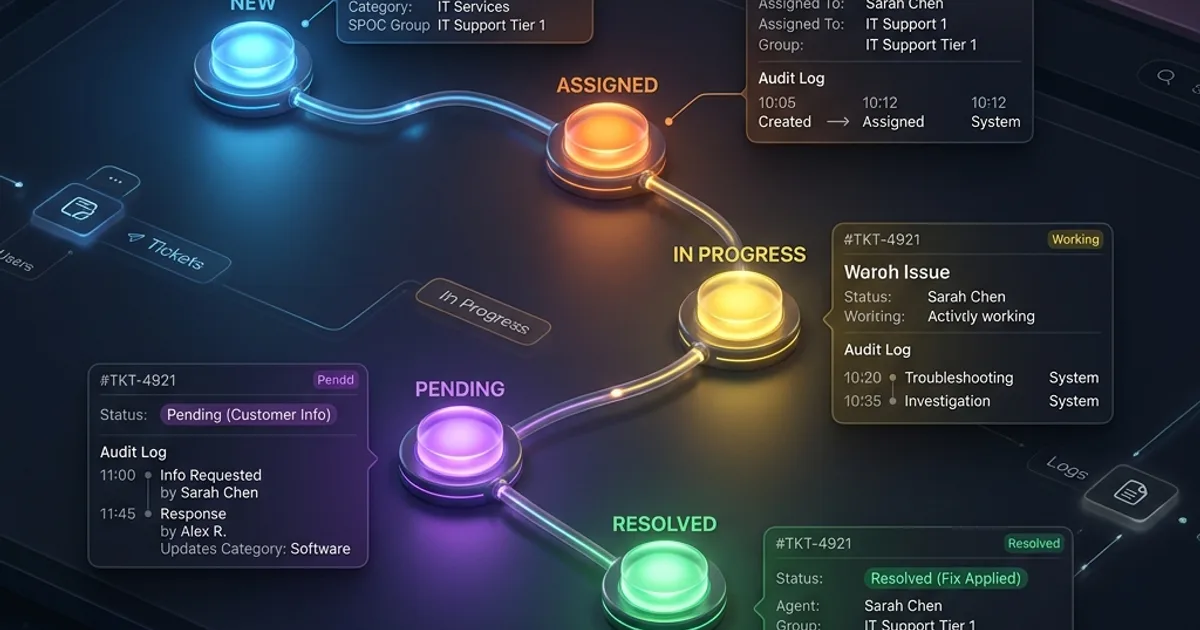
From first contact to closed ticket
Always happensOnly when needed
The Flow, Step by Step
Every inbound request follows an identical, deterministic path—regardless of channel. Two stages are conditional: automation runs only if enabled, and escalation triggers only when SLAs slip.
The 13-Step Workflow:
1. Customer reaches out — via phone call, WhatsApp message, email, web chat, Instagram or Facebook direct message, Google Business profile inquiry, or app-store review.
2. Automation intercepts (optional) — interactive voice response (IVR), AI-powered voice agent, WhatsApp flow, web-based chatbot, or email-triggered automation attempts resolution. If successful: ticket self-closes as first-contact resolution (FCR).
3. Customer identification — Wevyn matches the inbound number or email address to a unified customer profile, instantly surfacing transaction history, support interactions, and order details across every channel.
4. Ticket creation — system assigns a unique ticket number, attaches the full conversation thread, and delivers an acknowledgement to the customer.
5. Intelligent categorization & tagging — automated categorization engine maps tickets to predefined categories and subcategories. Rules-based logic auto-assigns owners, adds contextual tags, and can immediately close resolved inquiries.
6. Priority & service-level time assignment — each subcategory carries first-response and resolution time standards. The SLA countdown begins immediately; the deadline is prominently displayed in the ticket header.
7. Smart routing to right agent — Wevyn evaluates team skills, customer affinity, and agent availability. The system prefers agents who have successfully handled the same customer before; if no preferred match exists, the ticket routes to the next available team member.
8. SPOC team notification — the single point of contact (SPOC) group responsible for that category receives an immediate email notification, ensuring departmental visibility and accountability.
9. Agent-powered resolution — agents access voice calls, threaded replies, internal collaboration notes, knowledge-base recommendations, AI-drafted response suggestions, order lookups, and task reminders—all consolidated on a single unified screen.
10. Automated escalation (when triggered) — if the ticket exceeds its SLA, it escalates progressively: L1 → L2 → ESC1 → ESC2. Each escalation tier receives immediate notification.
11. Resolution & formal closure — agent records resolution notes and sets the disposition code. The ticket closes; automated emails confirm closure to both the customer and SPOC team.
12. Customer satisfaction measurement — the customer receives CSAT (Customer Satisfaction Score) and NPS (Net Promoter Score) surveys to gather feedback and track sentiment.
13. AI-driven quality assurance & analytics — machine learning algorithms automatically score conversation quality against defined competency models. Real-time dashboards update for supervisors, managers, and leadership.
This architecture guarantees no request goes unanswered, no customer is forgotten, and every interaction drives continuous improvement.
The Wevyn Ticket Screen
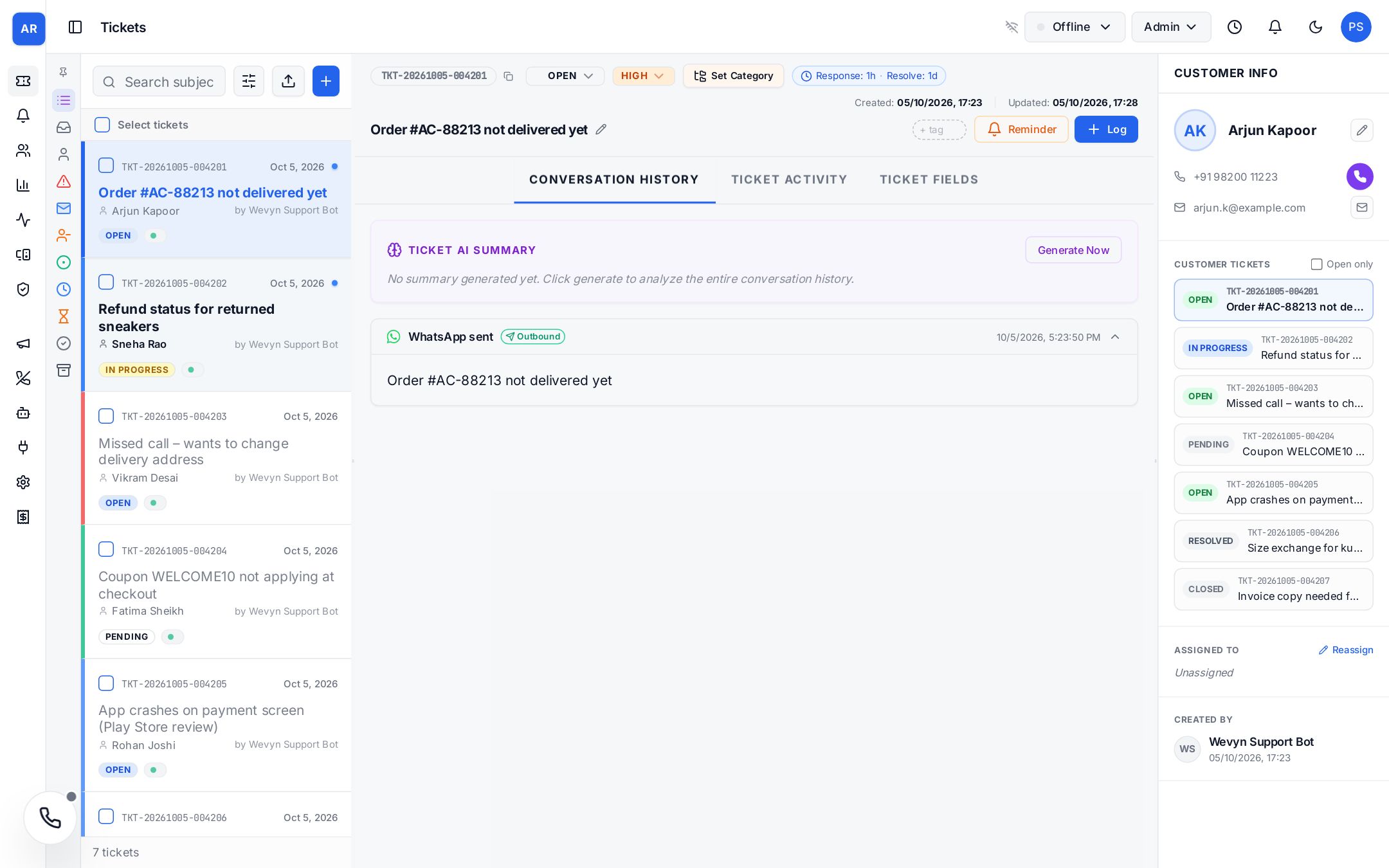
Wevyn's workspace is built around three synchronized panels—each solving a distinct problem in the support workflow.
The Wevyn ticket screen: the queue on the left, the full conversation with an AI summary in the middle, and the customer's details and earlier tickets on the right. Sample data.
Left Panel: The Queue — A prioritized list of all active tickets. Agents quickly scan ticket ID, customer name, status, priority level, and time-in-queue. Hover to see summaries; click to load.
Center Panel: Conversation + AI Summary — The full conversation thread from all channels displayed chronologically. Above it: an AI-generated summary of the issue, tone, and sentiment, so agents instantly understand context without reading every message. Agents reply, add internal notes, and access knowledge-base articles without switching screens.
Right Panel: Customer Profile & History — Complete customer details including contact info, segment, lifetime value, and all related tickets. Agents see past interactions, order history, and payment status at a glance—powering empathetic, informed support.
This three-panel design consolidates everything an agent needs into one focused workspace, eliminating context-switching and accelerating resolution.
Channels you can connect
Admins connect channels under Settings → Channels. Every channel feeds the same ticket queue.
Channel
How it connects
What agents get
Phone
Wevyn's built-in dialer over any SIP carrier, or your existing dialer
Ticket pops on the call, recording, transcript, AI summary
WhatsApp
Meta WhatsApp Cloud API, or a number hosted by Gupshup
Two-way chat, media, templates and bot flows
Email
Any mailbox over IMAP and SMTP; Microsoft 365 / Outlook via OAuth2
Threaded emails as tickets and email bot flows
SMS
Gupshup or Sinch
Approved templates sent from a ticket
Web chat and forms
Embeddable chat widget and public contact form
Live chat with an optional chatbot first
Social
Facebook Messenger, Instagram Direct, Google Business messages
DMs as tickets
App reviews
Google Play and Apple App Store
Reviews as tickets, reply flows, ratings report
Any other system
Inbound webhook secured with an API key
Your app or CRM opens conversations directly
Dialer compatibility: use ours or keep yours
Phone support works in one of two ways.
Mode A: Wevyn runs the call. Connect your phone carrier to Wevyn over SIP and agents take calls in a softphone inside the browser. Supported carriers are Twilio, Plivo, any SIP trunk or PRI line from your telecom operator, and Asterisk on your own premises. Inbound numbers and caller IDs sync automatically. Every voice feature works in this mode: IVR, AI voice bot, recording, live transcription, campaigns and supervisor barge-in.
Mode B: your existing dialer runs the call. If you already use Ozonetel CloudAgent or another contact-center dialer, keep it. Wevyn receives call events, so the right ticket opens when a call starts and the call details are saved when it ends. With Ozonetel, agents can also click-to-call from a ticket and use the Ozonetel softphone embedded inside Wevyn.
Capability
Wevyn dialer (Twilio, Plivo, SIP/PRI, Asterisk)
Ozonetel CloudAgent
Other CTI dialers
Ticket opens when a call starts
✓ Yes
✓ Yes
✓ Yes
Customer profile and auto ticket
✓ Yes
✓ Yes
✓ Yes
Click-to-call from a ticket
✓ Yes
✓ Yes
~ Depends on dialer
Call log in the ticket
✓ Full
~ What the dialer sends
~ What the dialer sends
Recording playback
✓ Yes
~ Linked from dialer
~ Linked from dialer
Live transcript during the call
✓ Yes
✗ No
✗ No
AI summary and Auto-QA on calls
✓ Yes
~ After the call
~ After the call
Wevyn IVR and AI voice bot
✓ Yes
✗ Use the dialer's IVR
✗ Use the dialer's IVR
Supervisor barge-in
✓ Yes
✗ Use Ozonetel's
✗ Use the dialer's
Campaigns, AMD and Do Not Call
✓ Yes
✗ Use the dialer's
✗ Use the dialer's
What each phone setup supports in Wevyn.
Rule of thumb: if the audio flows through Wevyn, every voice feature works. If another dialer carries the audio, Wevyn still handles tickets, customer history and call logs, while live call features stay in that dialer.
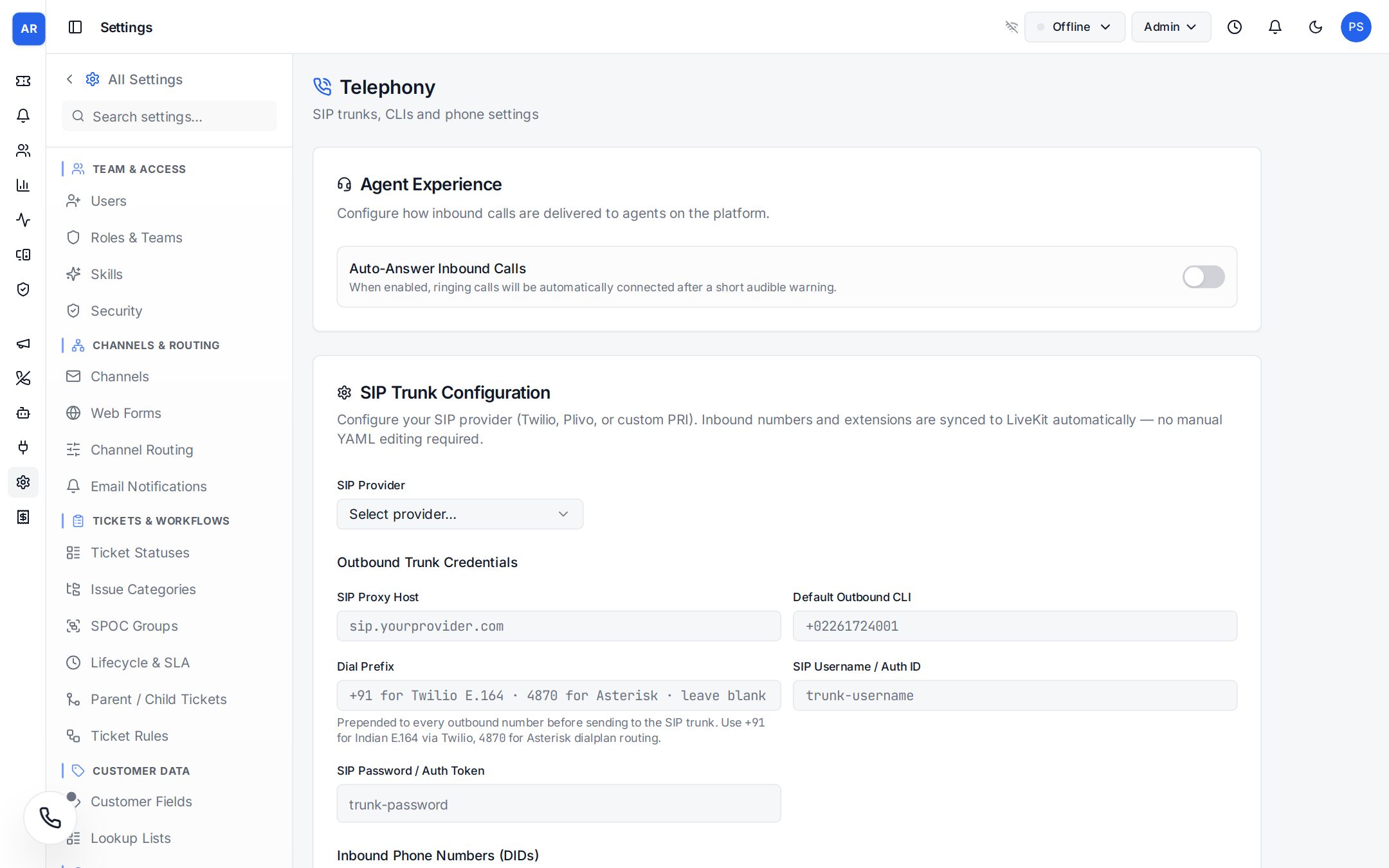
Settings → Telephony: choose Twilio, Plivo, Custom SIP/PRI, Asterisk or Ozonetel CloudAgent, then add trunk details, inbound numbers and a default caller ID.
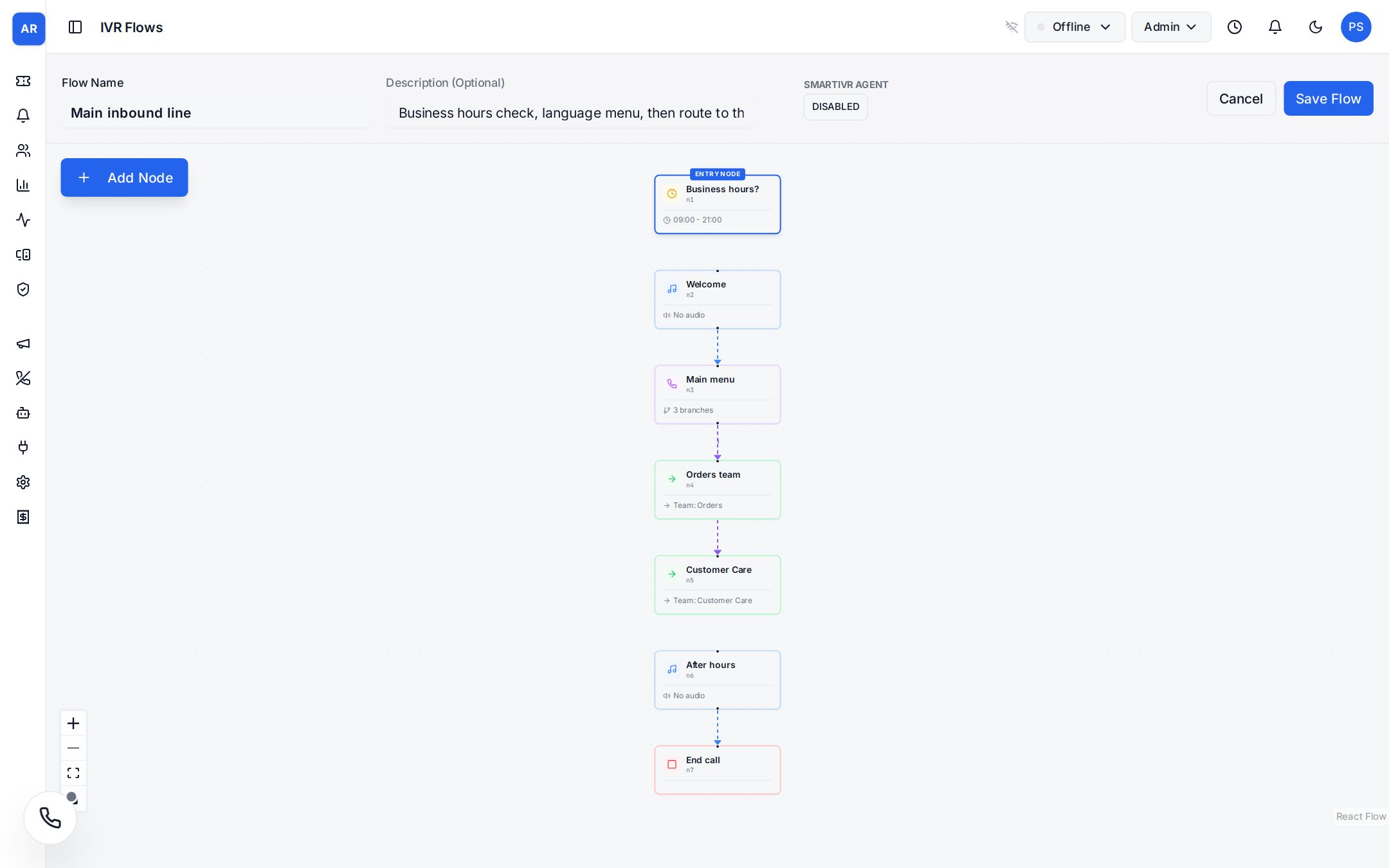
The IVR flow editor: a business-hours check, welcome message and keypad menu that route callers to the right team.
Outbound campaigns
Preview dialing: the agent sees the customer card with a countdown, then dials or skips.
Progressive dialing: Wevyn dials the next lead and connects answered calls to a free agent.
Compliance built in: a Do Not Call list, allowed dialing hours and answering-machine detection.
How routing picks the right agent
Routing is set per channel under Settings → Channel Routing. Most teams only choose a default team for each channel.
Team: only agents in the channel's default team are eligible.
Skills (optional): agents must also hold the required skills, such as Hindi or Refunds.
Sticky routing: a customer who returns within a set number of days goes back to the agent who helped them last.
Round robin or least loaded: work rotates evenly, or goes to the most idle agent. Priority and weight let senior agents take more.
No match: the ticket either waits for a matching agent or relaxes the rules, dropping skills, then team.
Overflow: after a set time, Wevyn assigns anyone free so no customer waits forever.
SLA, TAT and the escalation matrix
Every subcategory has a first-response time and a resolution time. The ticket header shows both. It shows an orange TAT due soon badge at 80% of the resolution time and a red TAT exceeded badge after it. Bots quote the same timeframes when customers ask how long something will take.
The escalation matrix has four levels: L1 (the agent), L2, ESC1 and ESC2. Each level is a SPOC group with its own response time. Wevyn checks open tickets every few minutes. When a ticket misses its deadline, it moves to the next level and that group is emailed. Customers and SPOCs receive notification emails at each key event: created, escalated, reassigned, category changed and closed. Admins can edit every template.
Bots and AI
IVR and AI voice bot: keypad menus, or a conversational voice bot that speaks English, Hindi, Marathi, Kannada, Tamil, Telugu and more.
WhatsApp flows: buttons, menus and an AI Answer step that uses your knowledge base. The Escalate step hands the chat to a person.
Website chatbot: a chat bubble with your logo and colours that answers first and hands over to agents.
Email and review flows: answer and route incoming emails and app-store reviews automatically.
ChatFlow AI: an installable AI agent for WhatsApp, Instagram, Facebook, email and web chat that hands hard cases to your team with a summary.
For agents: AI reply drafts, one-click ticket summaries, call transcription and sentiment.
For supervisors: Auto-QA scores every resolved conversation from 0 to 100, and the AI report builder turns a plain-English question into a report.
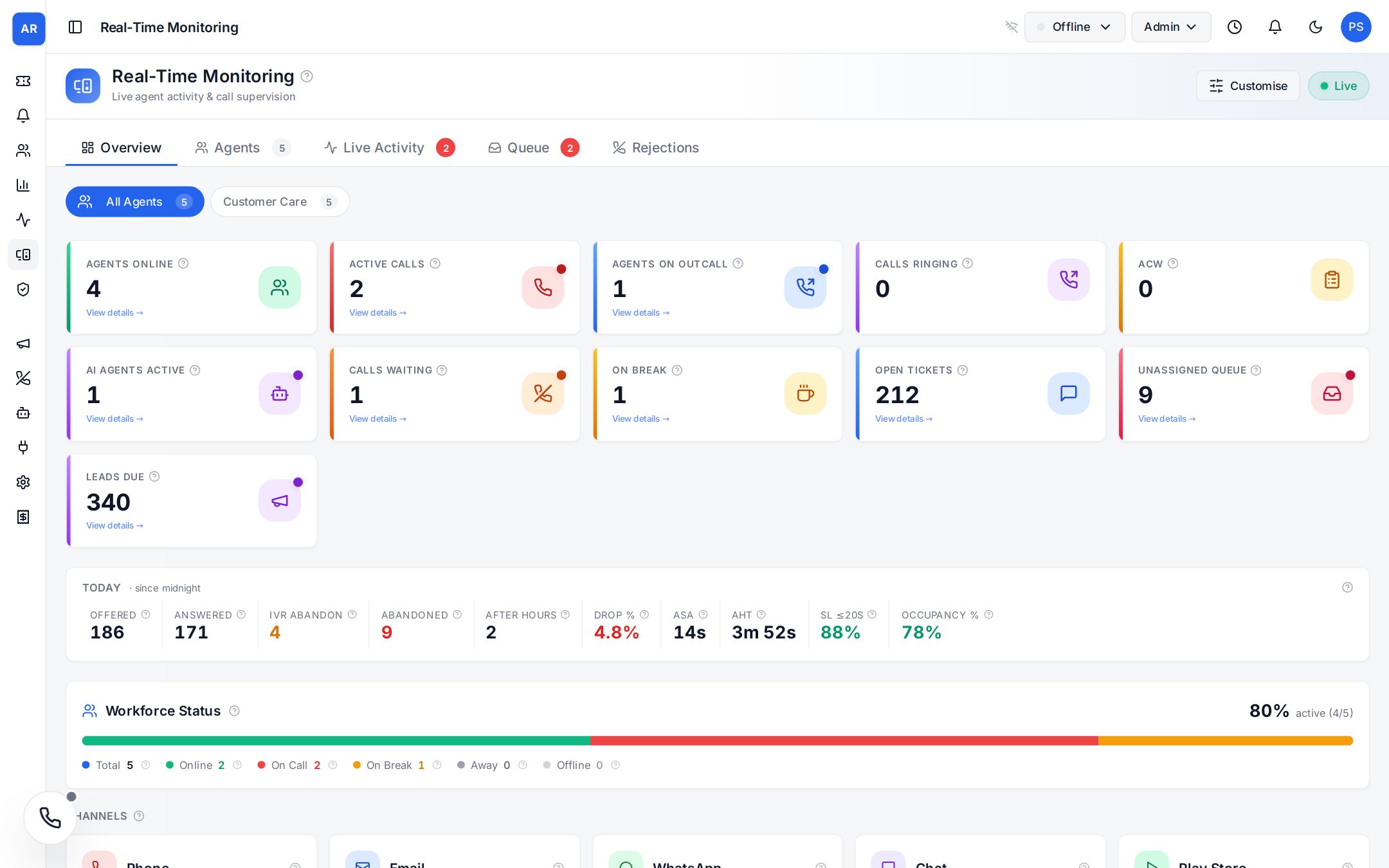
Real-Time Monitoring: agents online, on calls and on break, calls waiting, AI bot calls, and today's service level, handle time and occupancy. Sample data.
Every integration at a glance
Category
Integrations
Voice and dialers
Wevyn dialer, Twilio, Plivo, any SIP trunk or PRI, Asterisk, Ozonetel CloudAgent, other CTI dialers
Messaging
WhatsApp Business (Meta), WhatsApp via Gupshup, SMS via Gupshup or Sinch, website chat, web forms, inbound webhook
Email
Any IMAP/SMTP mailbox, Microsoft 365 / Outlook, editable notification templates
Social and reviews
Facebook Messenger, Instagram DMs, Google My Business, Google Play reviews, Apple App Store reviews
Orders and commerce
Shopify, your own order system (OMS), Vinculum, Clickpost, Pidge
AI and speech
OpenAI, AWS Bedrock, Groq, Ollama, Deepgram, Sarvam AI, ChatFlow AI
Sign-in and security
Google sign-in, Zoho sign-in, authenticator-app 2FA, audit log archive
Getting started
1. Invite your team. Create teams, add agents, supervisors, admins and SPOCs, and define skills.
2. Connect channels. Email, WhatsApp, the chat widget, social accounts, app reviews and order lookups.
3. Set up voice. Choose your carrier or connect your existing dialer, then build your IVR.
4. Route each channel. Pick a default team per channel and add skills or sticky routing if needed.
5. Shape your tickets. Statuses, categories with TAT, SPOC groups and escalation levels.
6. Switch on automation. Knowledge base, bots, AI replies, CSAT and Auto-QA.
Want to see this flow running on your own channels?
We use cookies to understand how visitors use wevyn.ai — which pages, from where — so we can improve the site. Nothing loads until you say yes. Privacy policy